


Filmora: AI Video Editor&Maker
Wondershare Filmora
When I want to turn a phone recording into something presentable without learning a full desktop editor, Filmora: AI Video Editor&Maker is one of the first apps I consider. It comes from Wondershare Filmora and sits in the video players and editors category, but its real appeal is the way it combines familiar timeline editing with quicker, more automated tools. I found it most useful when I already had a clear idea for a short video and wanted to finish it without spending an evening adjusting every small detail.
The app is free to install and suitable for Everyone, which makes it approachable for casual creators, students, families, and small social accounts. Its average rating is 4.0 from around 1.2 million ratings, while its install count has passed 100 million. Those figures suggest that it has become a mainstream mobile editor rather than a niche tool, although popularity alone does not make it the right choice for every project.
What I considered before choosing Filmora
My first decision criterion was speed. A mobile editor can offer a long feature list and still be frustrating if basic tasks are buried under menus. With Filmora, I could start by bringing in clips, placing them on the timeline, trimming unwanted sections, and arranging the remaining material in a sensible order. That straightforward beginning matters when I am editing a birthday message, a travel montage, or a quick product demonstration and do not want to study a manual first.
The second criterion was control. Automatic tools are helpful when they remove repetitive work, but I still want to decide where a cut happens, how long a title remains visible, and whether music overwhelms speech. Filmora works best for me because it does not force me to choose between a one-tap result and a completely manual workflow. I can use an automated starting point and then refine the parts that affect the finished video most.
The third criterion was the type of content I planned to make. This is primarily a mobile video editor for short-form and everyday projects, not a replacement for a specialized professional workstation. If my goal is a polished social clip, an instructional video for a small audience, or a personal compilation, the app feels appropriately focused. If I need a complex long-form production with extensive audio mixing and highly precise finishing, I would compare it with a desktop editor before committing to a mobile-only workflow.
Related News

Why WhatsApp Messenger Still Makes Everyday Communication Feel Easy

Jurassic World: The Game Is the Better Dino Tycoon for Strategic Players

Threads in Real Life: Who Should Join, Lurk, or Leave

How SHEIN Turned Shopping Into an Endless Content Feed

How to Make Fortnite Feel Smarter on Mobile

Should You Switch to Microsoft Outlook on Mobile?
I also paid attention to the learning curve. Filmora presents enough creative options to grow with a beginner, but that can make the interface feel busy at first. The best approach is to learn one workflow at a time: basic cuts first, then text and sound, followed by effects or AI tools. Trying every feature immediately makes the app seem more complicated than it needs to be.
How the everyday workflow feels
A realistic example is a short family event video. I might record several clips throughout the afternoon, discover that some are shaky or too long, and want to share a coherent version that evening. In Filmora, I would begin by selecting only the useful moments, arrange them around a simple beginning and ending, add readable text for context, and use music carefully so conversations remain understandable. The important advantage is not that the app magically creates a perfect film; it is that it reduces the distance between a messy camera roll and a shareable result.
For social videos, I recommend deciding the intended viewing format before doing detailed work. A vertical project should be planned around the phone screen, while a wider composition needs different framing. Repeatedly changing the shape of a project late in the process can make titles, faces, and important objects sit awkwardly. I found it more efficient to choose the destination style at the start and then keep the most important visual information near the center.
Gallery
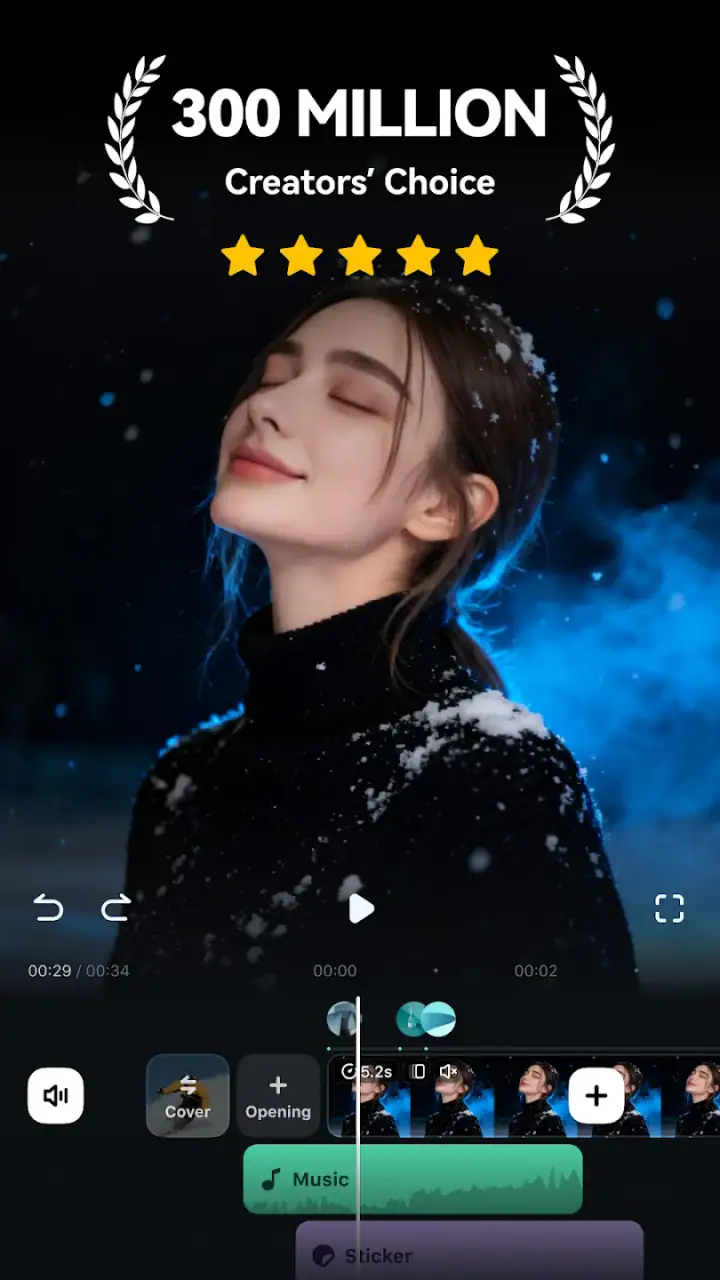
One useful habit is to separate the editing pass into three stages. First, I remove unusable footage. Second, I create the rhythm with cuts and clip order. Only after that do I add decorative elements. This prevents transitions, stickers, and effects from distracting me while I am still solving the story. Filmora offers plenty of ways to make a clip look active, but a clean sequence usually benefits more from good timing than from constant visual changes.
Where the AI tools genuinely help
The app’s identity is strongly connected to AI-assisted creation. Its toolset includes options such as background removal, text to speech, AI music, and templates. I see these as shortcuts for specific jobs rather than replacements for creative judgment. Background removal can be valuable when I need a person or object to stand out from its original setting, while text to speech can help when a project needs narration but I do not want to record my own voice.
There is a practical trade-off with automated background removal: the result depends on the subject and the background. Clear separation is easier than hair, transparent objects, fast movement, or cluttered scenes. I would always preview the edges against the final background before exporting. A cutout that looks acceptable on a busy editing screen can reveal rough edges once it is placed over a plain color or a larger image.
Text to speech is useful for quick explainers, accessibility-minded drafts, and videos where consistent narration matters more than personal warmth. For a heartfelt message or a channel built around personality, my own voice would usually feel more natural. I would also listen through the complete narration before arranging visuals, because the pacing of synthetic speech can change how long each scene needs to remain on screen.
AI music can speed up the early stage of a project, especially when I need a mood rather than a carefully composed soundtrack. My tip is to treat the generated or suggested music as a layer that supports the edit, not as the structure of the edit. I cut the visuals first, then adjust the music to the finished rhythm. Doing it in the opposite order can lead to awkward pauses or clips that feel stretched simply to follow a track.
Templates are another time-saver, particularly for users who want a recognizable format for recurring posts. The downside is that a template can make different videos feel too similar. I prefer using one as a starting layout, then changing the opening, text wording, clip order, and timing enough to make the result fit the actual subject. The strongest use of a template is a repeatable workflow, not an excuse to skip editing decisions.
Small editing choices that make a noticeable difference
One of my favorite practical techniques is to keep titles shorter than my first draft. On a phone, a sentence that looks fine while editing may become difficult to read when viewers are watching quickly. I use one idea per title, place it where it does not cover the main action, and leave it visible long enough to be understood without pausing.
I also avoid adding a transition between every clip. Filmora makes it easy to decorate a sequence, but frequent transitions can weaken the sense of time and place. A simple cut often works better for conversation, while a more noticeable transition can mark a genuine change in location or mood. This is one area where restraint makes the final video look more intentional.
For voice-led content, I check the music after the visual edit is finished. Even a pleasant track can compete with speech if its volume remains constant. I would rather use a quieter musical bed and clear narration than create a dramatic soundtrack that forces viewers to strain to understand the words. This workflow also makes it easier to identify clips that need trimming because of background noise or long pauses.
Another useful habit is keeping the original clips until the final version is safely saved. Mobile editing encourages quick cleanup, but deleting source footage too early removes the ability to recover a better moment later. I treat the project as a working copy and make decisions gradually, especially when the video includes memories that cannot be recorded again.
Where Filmora wins against familiar alternatives
Compared with a very basic phone editor, Filmora gives me a broader creative path. A simple editor may be quicker for trimming one clip and adding a basic caption, but it can become limiting when I want a more layered composition, automated assistance, or a stronger visual identity. Filmora is the better fit when I expect my editing needs to grow beyond the occasional cut.
Compared with template-first social apps, Filmora feels more useful when I want the final video to reflect my own sequence rather than a preset trend. Templates still have a place, especially when speed matters, but a timeline gives me more control over pauses, emphasis, and the relationship between speech and visuals. I would choose Filmora when the story matters more than matching a popular format.
Compared with a full desktop editor, the advantage is convenience. I can work close to where the footage was recorded and finish a short project without transferring everything to another device. The compromise is that a phone screen is less comfortable for detailed work. Fine adjustments, long timelines, and complicated projects demand more patience on mobile than they do with a larger display and dedicated controls.
The app is also a reasonable middle ground for someone who has outgrown a basic editor but is not ready for professional software. I would not describe it as effortless in every situation, yet it offers enough room to experiment with layers, narration, music, templates, and AI-assisted tasks without requiring a highly technical background.
Where another kind of editor may fit better
I would look elsewhere if my main goal were simply to crop, rotate, and share a single clip as quickly as possible. Filmora’s wider set of tools can be unnecessary for that job. A lighter editor may feel faster because it asks fewer decisions from the user.
I would also consider a desktop solution for a long documentary, a multi-camera project, or work that depends on exact audio synchronization. The mobile workflow is convenient, but convenience does not remove the physical limits of a small screen. Anyone who regularly performs frame-by-frame adjustments or manages many layers should test the workflow with a real project before moving an entire production process to the phone.
Creators who want a highly personal, natural presentation may prefer recording their own voice and building a simple edit manually instead of relying heavily on AI narration or templates. Filmora can support that style, but its automated features are most valuable when they solve a real bottleneck. Using them just because they are available can make a video feel less distinctive.
There is also a cost consideration. The app itself is free, but in-app purchases range from $0.49 to $119.99 per item. I would begin with a complete small project using the free experience before paying for anything. That test reveals whether the available workflow, export process, and creative tools match the way I actually edit. It is much better than subscribing or buying extras based only on an attractive feature preview.
The cost of changing your editing workflow
Switching to Filmora is relatively easy when your footage already lives on your phone and your projects are short. The larger cost is learning where your preferred tools are located and rebuilding habits around its timeline, templates, and AI features. I would not migrate every old project immediately. I would finish one new video, note which steps felt slow, and then decide whether the app deserves a permanent place in my routine.
If you are coming from a basic editor, the first adjustment is accepting that more choice can mean more setup. I recommend creating a personal sequence: import, select, trim, arrange, add text, balance sound, preview, and export. Repeating that order keeps the interface manageable. Once the basic process feels automatic, experiment with background removal or text to speech on separate projects rather than mixing every new tool into an important video.
If you are coming from desktop software, the adjustment goes the other way. You may miss the space and precision of a larger interface, so plan mobile projects around shorter timelines and fewer layers. Filmora makes sense as a companion for quick edits, last-minute changes, or footage captured away from your main workstation. It may not make sense as the only editor for demanding productions.
Version 15.2.01 is the current version, and the app requires Android 7.0 or later. That makes checking the phone’s operating system a sensible first step before planning a workflow around it. I would also keep enough free storage for source clips and finished exports, because video projects can become cumbersome when the device is already close to full.
Who should use it, and who should skip it
I recommend Filmora to beginners who want more than basic trimming, social creators who need repeatable short-video workflows, and small businesses making demonstrations or announcements without a dedicated editor. It is especially appealing if you like the idea of AI assistance but still want to adjust the result yourself.
I would be more cautious for someone who only needs one-tap sharing, dislikes interfaces with many creative controls, or expects professional desktop-level precision on every project. I would also advise experienced editors to treat it as a mobile companion unless their work is naturally short and simple.
The age rating of Everyone makes it broadly approachable, but that does not mean every feature will suit every user. Younger or inexperienced creators may still benefit from learning basic editing principles before relying on automated effects. The app can make a result quickly; understanding why a cut, title, or sound choice works is what makes the result consistently good.
My recommendation after using the full workflow
Filmora is strongest as a flexible middle-ground editor: quicker and friendlier than a serious desktop setup, but more capable than a bare-bones trimming tool. I like it most when I have several clips, a clear message, and limited time. Its AI features can remove repetitive work, while the manual timeline gives me a way to correct choices that do not fit the story.
I would install the free version and make one complete video before deciding whether it belongs in my regular toolkit. Pay attention to how comfortable the timeline feels, whether the automated tools genuinely save time, and whether the available free workflow is enough for your projects. Since the app has been available since December 14, 2015, it has had time to establish a recognizable editing approach, but that does not remove the need to judge it against your own habits.
My final view is positive, with a clear boundary: choose it for practical mobile editing with room to grow, not because AI can replace planning. When I use it selectively—clean cuts first, automation where it solves a real problem, and effects only when they support the message—the app helps me finish videos I might otherwise leave sitting in my camera roll. That makes it an easy recommendation for everyday creators, while more demanding editors should compare the convenience against the precision they expect from their usual alternatives.
FAQs for Filmora: AI Video Editor&Maker
What features does Filmora offer for video editing?
Filmora provides a wide range of features including AI-driven editing tools, easy-to-use drag-and-drop interface, a vast library of music and sound effects, filters, overlays, and text options. It also supports 4K video editing and offers advanced features like green screen, split screen, and motion tracking for more dynamic videos.
Is Filmora suitable for beginners in video editing?
Yes, Filmora is designed to be user-friendly, making it an excellent choice for beginners. Its intuitive interface allows users to easily navigate through editing tools and features, while tutorials and templates provide guidance for creating professional-looking videos without prior experience.
What platforms is Filmora available on?
Filmora is available on both Android and iOS devices, ensuring a seamless editing experience on the go. It also has desktop versions for Windows and macOS, allowing for versatile editing across different devices. This cross-platform availability makes it highly accessible for users with varying needs.
Does Filmora offer any cloud storage or sharing options?
Filmora allows users to save projects directly to the cloud, providing easy access and storage. Additionally, it offers direct sharing options to popular social media platforms like YouTube, Facebook, and Instagram, simplifying the process of showcasing your creations to a wider audience.
Are there any costs associated with using Filmora?
Filmora offers a free version with basic features, but it includes watermarks on exported videos. To access premium features and remove watermarks, users can choose from various subscription plans. These plans are flexible, catering to different needs and budgets, ensuring value for money with advanced editing capabilities.
Pros
- User-friendly interface for beginners.
- Wide range of editing tools available.
- AI-powered features enhance efficiency.
- Supports multiple video formats.
- Regular updates with new features.
Cons
- Watermark on free version exports.
- Limited advanced features in free version.
- Occasional crashes on older devices.
- High storage requirement for installation.
- Subscription can be pricey for some users.


